
Unmanned PTZ Camera Workflows for Live Events
How worship and live event teams run PTZ cameras with no operator behind them: choosing the workflow, planning presets from the run-of-show, remote producing, monitoring and fallbacks.

Updated November 2026
An unmanned PTZ camera workflow runs a live event with no one standing behind the cameras. The pan-tilt-zoom cameras are driven by planned presets, recalled by one producer who may be at the back of the room, in another building or at home. It's how many churches run Sunday services with a small volunteer team, and how event teams cover breakout rooms and hybrid sessions without a camera operator in every space. This guide covers which workflow fits your event, how to plan shots from the run-of-show, and how to keep the show on air when nobody is in the room.
1. Know what "unmanned" means for your event
Most live events that run without camera operators fall into one of three patterns:
- Locked wides only. Cameras sit on fixed shots the whole time. It's simple and reliable, but the result looks static.
- One producer, many cameras. A single person recalls presets across every camera and cuts between them, from the room or from somewhere else. This is the sweet spot for worship services, conferences and panels.
- Remote producer, volunteer on site. The producer is off site, and a volunteer in the room handles anything physical: a camera that needs a power-cycle, a presenter who moved off their mark.
2. Pick the workflow that fits the event
3. Place cameras for fixed positions
Unmanned workflows work best when the action happens in predictable places. Put cameras where the shots are, not where the cables are easiest:
- One camera with a clean, safe wide of the whole stage or room. Lock it and leave it.
- One camera per regular position: lectern, pulpit, panel table, worship leader, band.
- An audience or room camera for reactions and questions.
- Wired network connections for every camera, and a way to power-cycle each one remotely.
4. Build presets from the run-of-show
Write the shot list before the event, segment by segment, and turn every planned shot into a named preset. A worship service might look like this:
- Walk-in: Cam 1 safe wide · Cam 3 room
- Worship set: Cam 2 "Leader" · Cam 2 "Band wide" · Cam 3 "Keys"
- Announcements: Cam 2 "Lectern"
- Message: Cam 2 "Pulpit tight" · Cam 2 "Pulpit medium" · Cam 1 safe wide
- Response: Cam 3 "Room" · Cam 1 safe wide
Name presets the way the producer calls them. Set recall speeds slightly slower than feels natural, so moves look deliberate on air. Match color and exposure across cameras so 2 cuts don't jump. For a deeper walk-through, see our guide to building a preset plan for a two-person crew.
5. Produce it from wherever you are
With presets in place, one producer can run every camera while also switching or streaming:
- In the room or booth: control over the local network, with the fastest response.
- Elsewhere in the building: same local network, so it feels the same.
- Off site: over the internet, with more delay. Stick to preset recalls and small reframes, and keep fast moves for someone on site. See what latency remote operators will tolerate.
Keep the video and control path local for anyone who is in the building. Only the producer who is truly remote should cross the internet.
6. Monitor like nobody's there, because nobody is
Without operators, nobody notices a camera that drifted, lost power or stopped responding until it's on air. Build monitoring into the workflow:
- Before every event, recall one preset on every camera and watch it move.
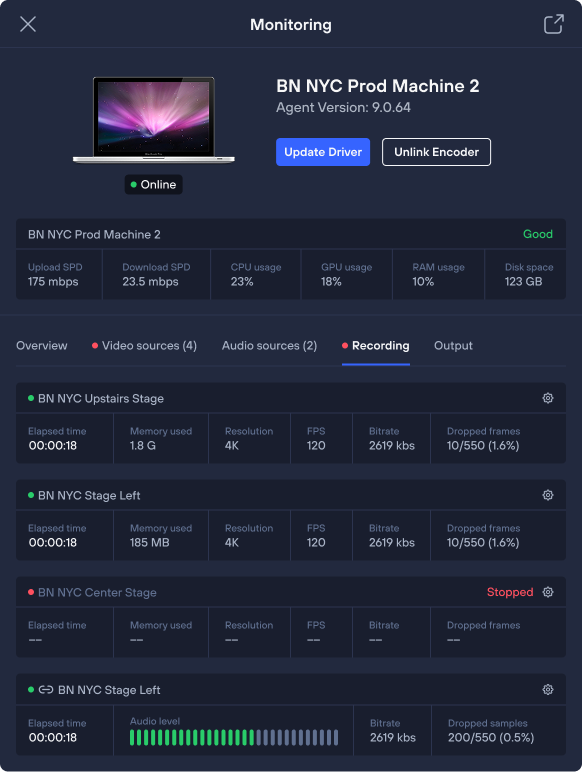
- Watch each camera's bitrate, frame rate and packet loss, not just an online light.
- Look for cameras that show online but aren't accepting commands.
- For multi-room events, recheck each room before every session, not just in the morning.
7. Plan the fallback
Decide before the event what happens when something fails:
- If control drops, the safe wide stays live and the stream keeps running locally.
- A volunteer on site knows which camera to power-cycle and how.
- If the remote producer loses their connection, someone on site can take over, or the cameras sit on presets that still work.
- You've rehearsed the failure once, at the real venue.
8. Know when unmanned isn't the answer
Presets are great for people who stay in predictable places. They're not good at following a speaker who wanders the stage, a sports play or a performer moving through the crowd. For those moments, put a person on one camera and run the rest unmanned. Mixing the two is often the best use of a small team.
How Iris supports unmanned workflows
Iris is software-based PTZ camera control that runs local-first. In Local Mode, control and video stay on the venue network, with under 300 ms control latency for anyone in the building. A remote producer joins the same Studio in Cloud Mode with the same presets, framing tools and camera health monitoring. Roles decide who can move which camera, so volunteers can watch without touching the live shot, and guest access can expire after the event. Iris works with 400+ PTZ models across 25+ brands, alongside the switcher you already use. See how it fits worship teams and event production, or start free.
FAQ
Can you run a live event with no camera operators?
Yes, if the action happens in predictable places. Place cameras for fixed positions, build presets from the run-of-show, and have one producer recall them, on site or remotely. Keep a safe wide on one camera at all times.
How many people does an unmanned PTZ workflow need?
Usually one producer who runs the cameras and often the switcher, plus a volunteer on site who can handle anything physical if the producer is remote.
Can a church run its cameras without volunteers behind them?
Yes. Many churches run services from presets mapped to the order of service, with one person producing from the booth or from home. The same presets are reused every week.
Is it possible to control PTZ cameras from off site during a live event?
Yes. Expect more delay than on the venue network, so use remote control for preset recalls, small reframes and monitoring, and keep fast moves with someone in the room.
What happens if a camera fails during an unmanned event?
Cut to the safe wide, keep the stream running, and have the on-site contact power-cycle the camera. Checking every camera's health before the event catches most failures before they reach air.
More from the Iris blog
All posts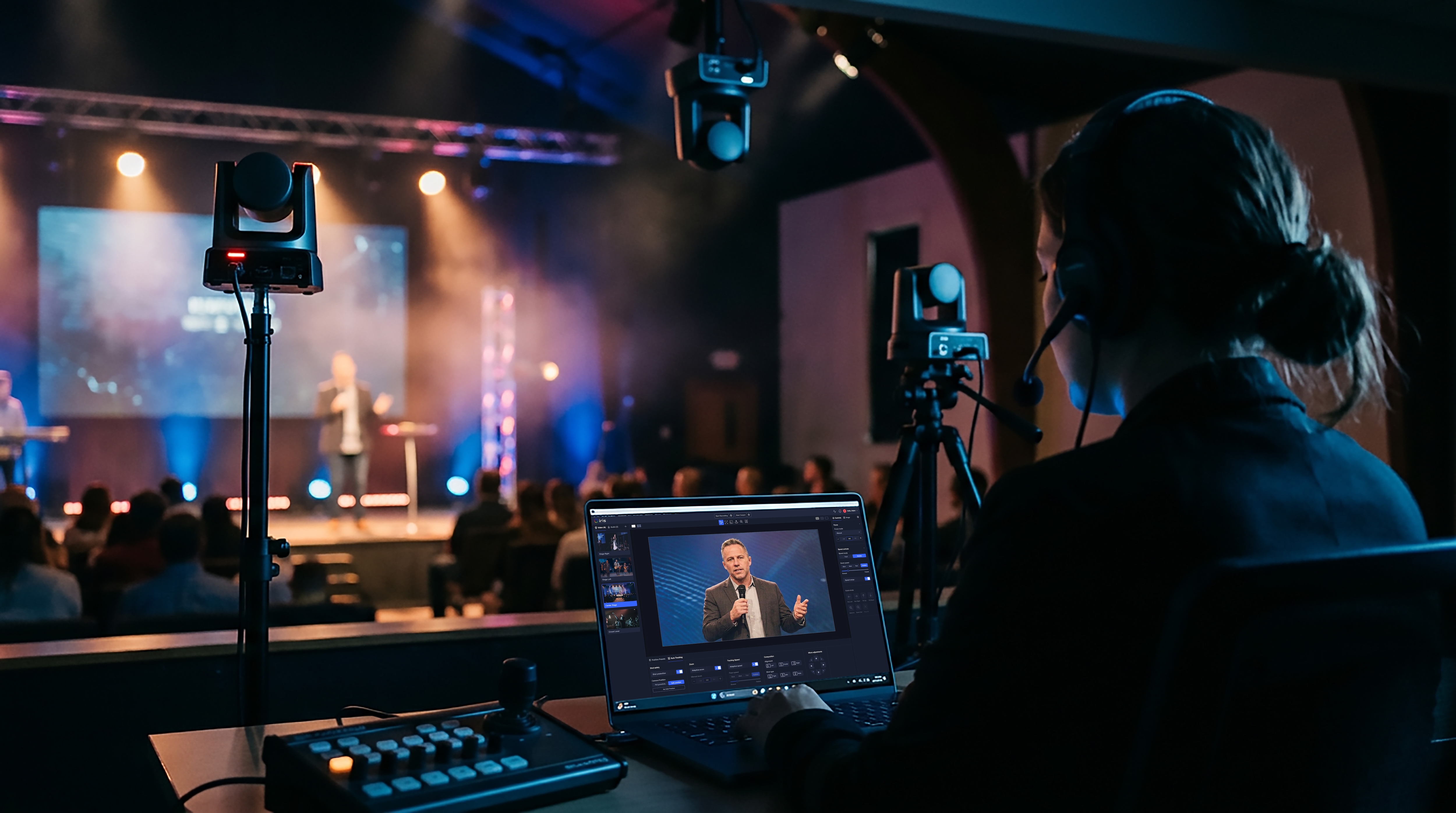
Get started
Upgrade your PTZ control with Iris.
Control, manage, color-correct, and monitor any camera from anywhere — with the brands and gear you already own.